Last updated: June 15, 2026
To set up Microsoft Authenticator, download the free app from the App Store or Google Play, sign in to your Microsoft account, choose mobile app verification, then scan the QR code on screen. The whole process takes under 10 minutes and adds a second login layer beyond your password.
Introduction: Why You Need Microsoft Authenticator
Passwords alone no longer protect your accounts. Attackers now use AI to guess, phish, and crack credentials faster than ever, and a stolen password is often all they need. Microsoft Authenticator closes that gap by adding a second verification step, so a leaked password is not enough to get someone into your account. For most businesses, app-based MFA is one piece of a broader managed cybersecurity strategy.
It adds real security beyond your password. By requiring a second form of verification, you cut the risk of unauthorized access even when your password has been compromised.
What is Multi-Factor Authentication (MFA)?
Multi-Factor Authentication requires two or more verification factors before it grants access to a resource. It usually combines two or more of these factors.
- Something you know, like a password or PIN
- Something you have, like a smartphone with an authenticator app
- Something you are, like a fingerprint or facial recognition
MFA works. According to Microsoft, an account is more than 99.9% less likely to be compromised when MFA is turned on, which makes it one of the highest-impact security steps you can take. The U.S. agency CISA recommends it for the same reason. Microsoft Authenticator handles that second factor through your smartphone.
Getting Started with Microsoft Authenticator
Setting up Microsoft Authenticator is simple and takes less than 10 minutes. Here is how it breaks down.
Step 1. Installing the App
The first thing you’ll do is download and install the Microsoft Authenticator app on your smartphone.
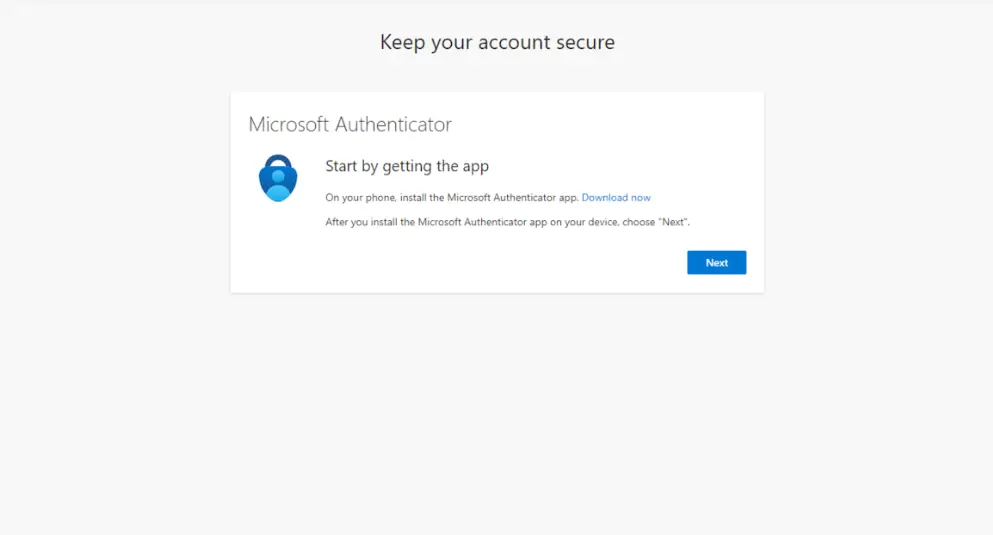
For iPhone users
- Open the App Store on your iPhone
- Search for “Microsoft Authenticator”
- Tap the Get or Download button
- Wait for the installation to complete
For Android users
- Open the Google Play Store on your Android device
- Search for “Microsoft Authenticator”
- Tap the Install button
- Wait for the installation to complete
Step 2. Setting Up Microsoft Authenticator
Once the app is installed, connect it to your Microsoft account.
- Go to outlook.office.com and sign in with your Microsoft account credentials
- When prompted for additional security verification, select Mobile app from the options
- Choose Receive notifications for verification and click Set up
- A QR code will appear on your screen
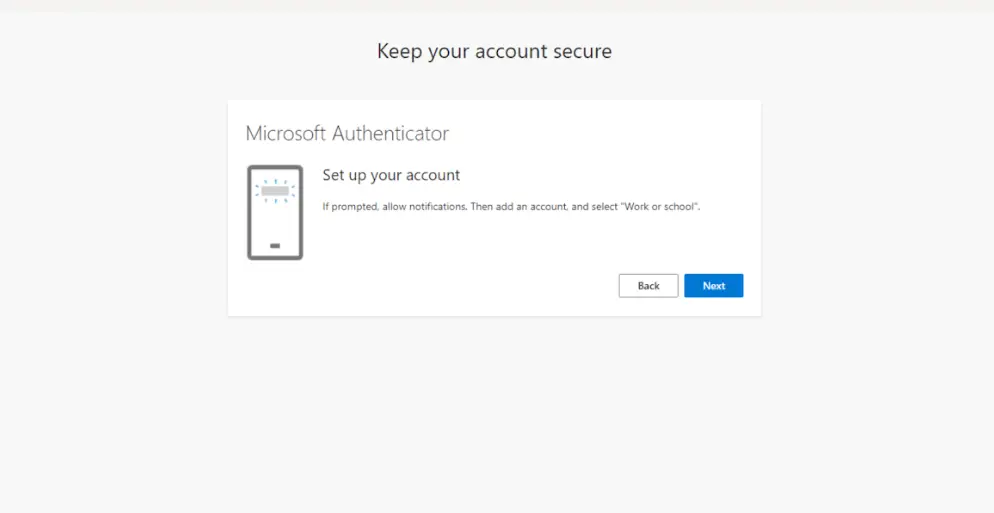
- Open the Microsoft Authenticator app on your phone
- Tap the plus icon or Add account option in the app
- Select Work or school account
- Use your phone’s camera to scan the QR code displayed on your computer screen
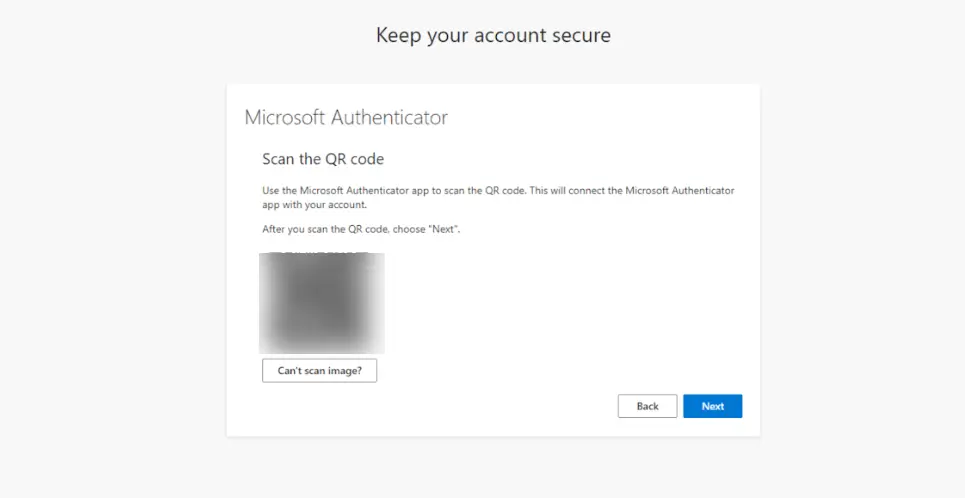
- Once scanned, you’ll receive a test notification on your phone. Approve it to complete the setup
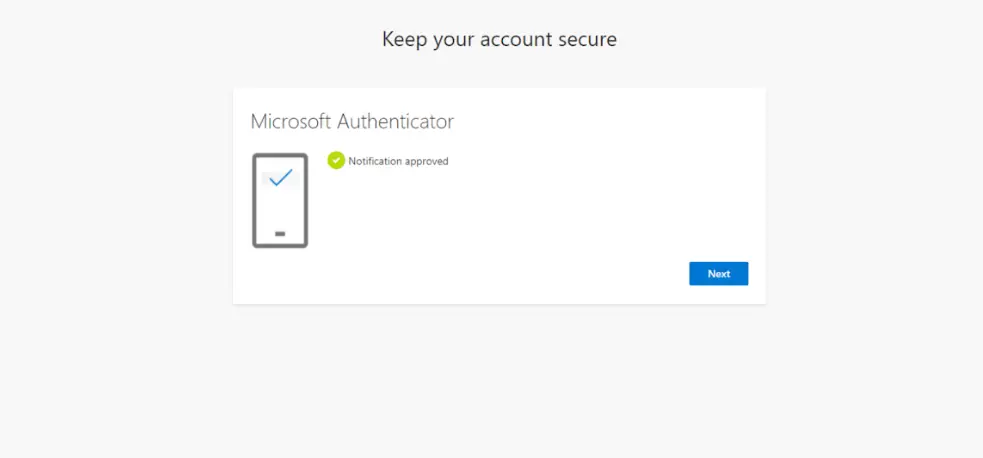
Step 3. Adding a Backup Method
It is smart to add a backup verification method in case you lose access to your primary one.
- After the initial setup, you’ll be prompted to add a backup method
- Enter your mobile phone number
- Choose whether you’d prefer verification codes by text message or phone call
- Follow the prompts to verify your backup method
That’s it. You’ve set up Microsoft Authenticator and added an essential layer of security to your Microsoft account.
Microsoft Authenticator vs. DUO: Which is Right for You?
Microsoft Authenticator is a solid choice for individual users and basic Microsoft 365 protection. Many organizations, though, need something they can manage centrally across every app and user. That is where DUO comes in as an enterprise-grade alternative.
| Feature | Microsoft Authenticator | DUO |
|---|---|---|
| Best for | Individuals and small Microsoft 365 setups | Teams and multi-app organizations |
| Management | Set up by each user | Centrally deployed by IT or your provider |
| Coverage | Microsoft 365 and TOTP services | Microsoft 365 plus most third-party apps and VPNs |
| Access experience | Per-app approval | Single sign-on across connected apps |
| Adaptive policies | Basic | Risk-based, adjusts by user, device, and location |
| Reporting and compliance | Limited | Detailed logs and audit reporting |
| Cost | Free | Paid, per user |
Why Many Organizations Choose DUO
DUO offers several advantages for businesses.
- Centrally managed. Unlike Microsoft Authenticator, which each person sets up alone, DUO is deployed and managed by your IT department or provider, like Uprite.
- Protects more than Microsoft 365. DUO extends across multiple platforms and applications beyond the Microsoft ecosystem.
- One login across your apps. DUO streamlines authentication with a single sign-on experience across multiple services.
- Risk-adaptive policies. DUO applies security policies that adapt to risk factors, adding stronger protection where it is needed without extra friction.
- Stops mailbox takeovers. Even if credentials leak, DUO’s MFA blocks unauthorized access.
- Simplifies audits and compliance. DUO offers reporting and monitoring that make regulatory compliance more straightforward.
- Fewer support tickets. Central management means fewer authentication problems and help requests.
Our Honest Take
For a single user protecting a personal or small-business Microsoft 365 login, Microsoft Authenticator is enough, and it is free. Once you are managing more than a handful of employees, or apps that live outside Microsoft 365, the central control and reporting in DUO usually pay for themselves. If you are not sure which one fits, that is a normal question to bring to a managed service provider.
Real Client Feedback on DUO
Organizations that have moved to DUO tend to report the same thing.
“DUO gave us strong security and actually improved the user experience, with no more constant push requests. Our employees appreciate the simpler login while our security team has peace of mind.” Enterprise Security Manager
The mix of strong security and a better login experience is what makes DUO valuable for organizations where central management and broad protection matter.
Troubleshooting Common Issues
If you hit a snag during setup, here are the most common problems and how to fix them.
QR code not scanning properly
- Make sure the room is well lit
- Hold your phone steady and at the right distance from the screen
- Check that your phone’s camera is clean and unobstructed
- Use the manual entry option if scanning keeps failing
Not receiving verification notifications
- Confirm notifications are enabled for the Microsoft Authenticator app
- Make sure your phone has an active internet connection
- Verify the app has the permissions it needs on your device
App not working after a phone change
- If you switched phones without transferring your account info, you’ll need to set up your accounts again in the new app. Turning on cloud backup first avoids this
Contact Uprite Services to get a free IT assessment
FAQs About Microsoft Authenticator
Is Microsoft Authenticator free to use?
Yes, Microsoft Authenticator is completely free to download and use.
Can I use Microsoft Authenticator for non-Microsoft accounts?
Absolutely. Microsoft Authenticator works with any service that supports standard TOTP (Time-based One-Time Password) authentication, including Google, Amazon, and most major platforms.
What happens if I lose my phone?
This is why setting up backup methods matters. If you added a phone number as backup, you can receive codes by text or call. Otherwise, you may need to go through account recovery.
Does Microsoft Authenticator work offline?
For accounts set up with the standard TOTP method, yes. The app generates codes even without an internet connection, though push notifications still need connectivity.
How secure is Microsoft Authenticator?
Very secure. The app uses industry-standard encryption and does not store your account passwords. Verification happens through secure channels, and the codes change every 30 seconds.
How do I move Microsoft Authenticator to a new phone?
Turn on cloud backup in the app settings on your old phone, then sign in with the same account on your new phone to restore your accounts. If you did not enable backup before switching, you will need to re-add each account by hand.
Conclusion
Multi-Factor Authentication is one of the most effective steps you can take to protect your accounts, and Microsoft Authenticator makes it easy to add. By following this guide, you have closed one of the most common doors attackers use to get in. For more ways to protect your business from cyberthreats, build MFA into a wider security plan.
If you manage a business tenant, Microsoft’s mandatory MFA enforcement now applies to Azure and Microsoft 365 admin sign-ins, and the final window to postpone Phase 2 enforcement (Azure CLI, PowerShell, and REST API operations) closes July 1, 2026. Whether you are setting this up for personal use or to meet that requirement, you have made an important move toward stronger security.
Need help with setup, or prefer DUO for advanced protection? Contact Uprite Services for a fully managed solution.